Custom Data Services, Inc.
Remote desktop access portal
Secure office connection
Connect to your CDS workstation from anywhere.
Use the device guide below for Windows, Mac, or Linux. No matter which device you use, you will need your own workstation name and your normal CDS sign-in.
cds-windows.rdp
cds-mac.rdp
1
Download the file
Click the button and save the CDS remote file.
2
Open it
Open the file from Downloads if it does not open by itself.
3
Sign in
Use your workstation name, then sign in with cds\yourusername .
Windows Quick Start
Download and connect
Windows users can use this file because it already has the gateway settings built in.
Download cds-windows.rdp
If you are on a Mac or Linux computer, skip this button and use the device guide below instead.
Need
Your workstation name
Need
Your domain password
Choose Your Device
See the instructions for your computer
We will try to pick the right setup steps automatically. If we guessed wrong, click your device below.
Windows
Fastest setup with the download file
Mac
Use Windows App or Microsoft Remote Desktop
Linux
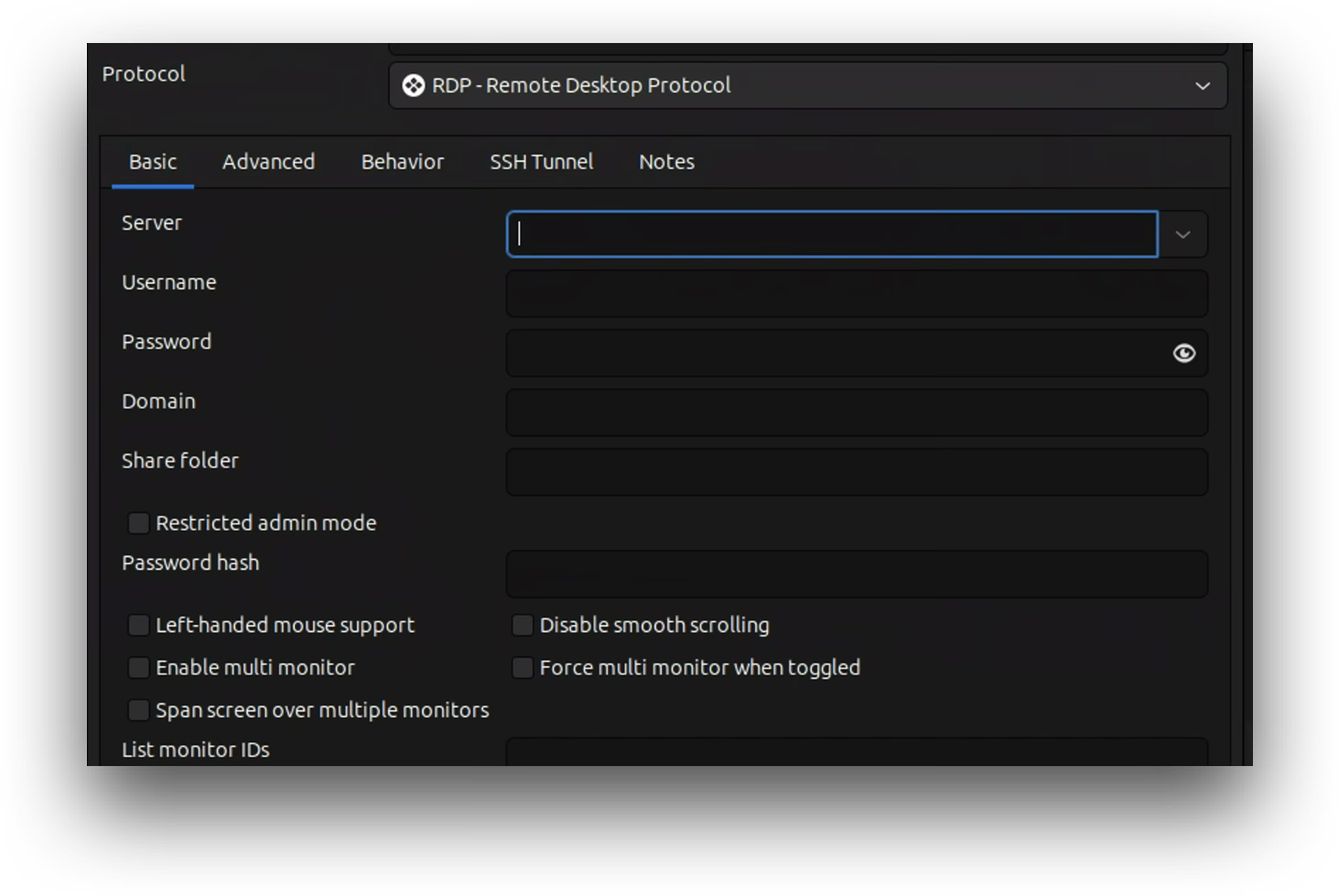
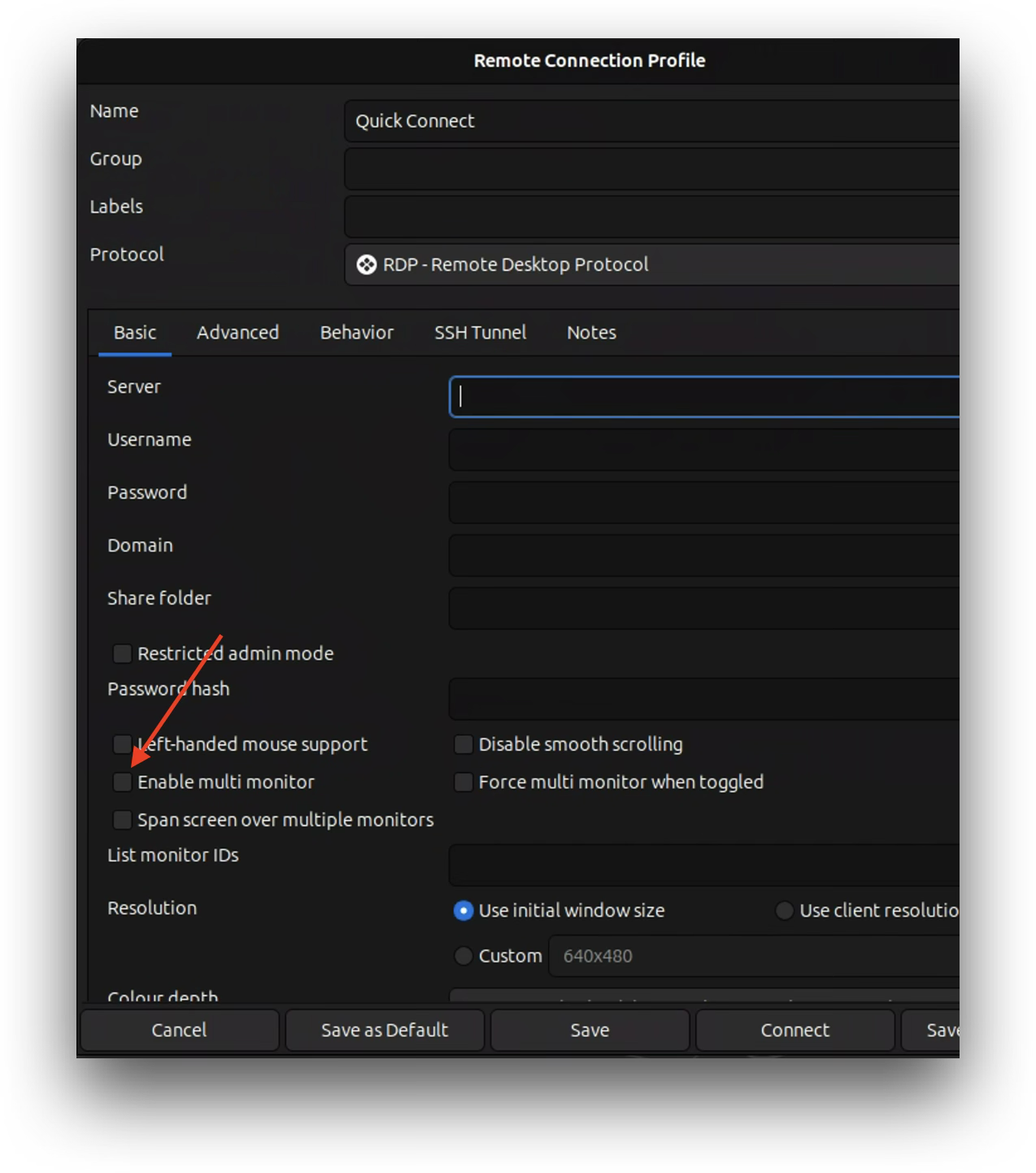
Use Remmina or another RDP client
We think you are on Windows . If that is wrong, choose a different device above.
1
Download the file
Click the download button above to save cds-windows.rdp to your device.
2
Open the RDP file
If your browser does not open it automatically, find it in your Downloads folder and double-click it.
3
Enter your workstation name
Type your own workstation name in the format CDS### . Do not type CDS184 unless your label actually says 184.
4
Enter your credentials
Use your CDS username in the format cds\yourusername and your normal CDS password.
5
Continue if Windows asks to connect
If Windows shows a trust or connect prompt, continue with the CDS remote session.
Windows Help
If Windows asks for more setup
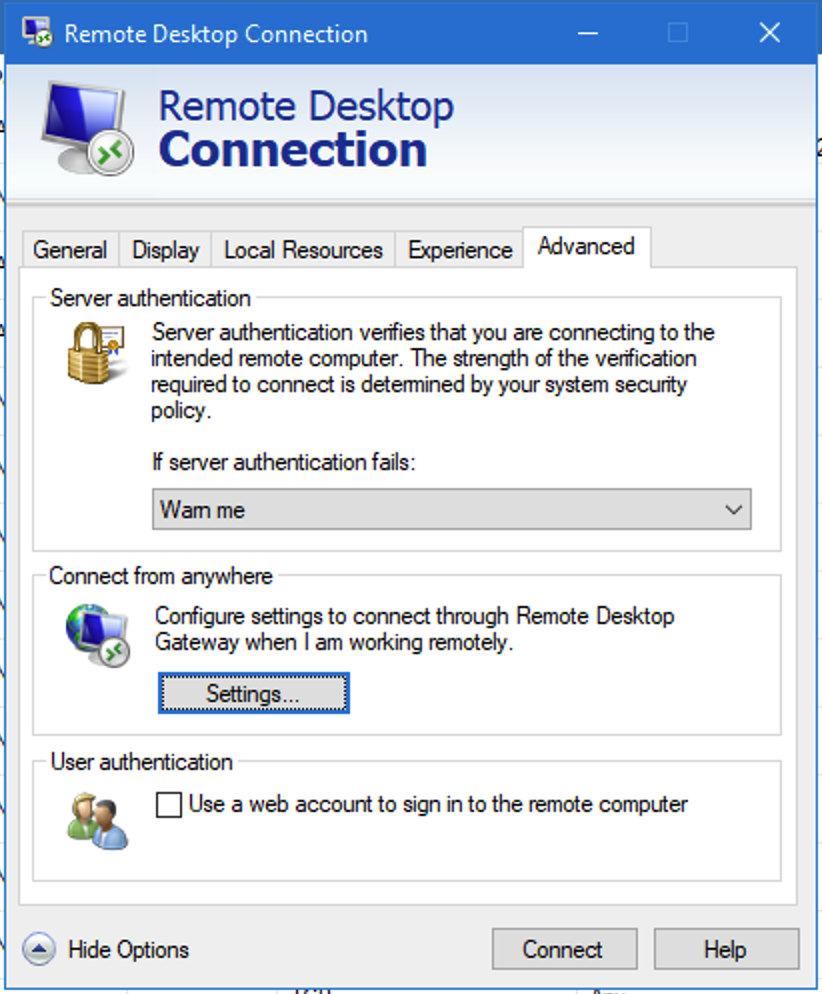
Most people can stop after downloading and opening the RDP file. If Windows makes you go into advanced settings, use these screenshots.
1
Open the Advanced tab
Click Show Options , then open the Advanced tab.
2
Click Settings
Under Connect from anywhere , click Settings... .
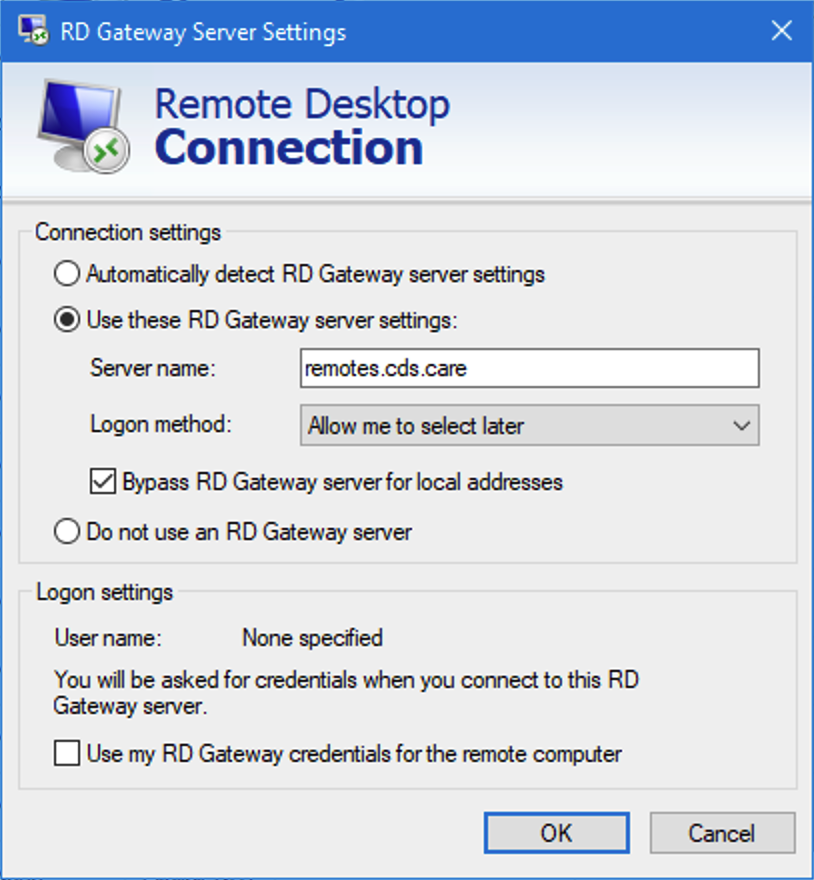
3
Use the CDS gateway
Choose Use these RD Gateway server settings and type remotes.cds.care .
4
Sign in normally
When prompted, use cds\yourusername and your normal CDS password.
Your workstation name is your own label number with CDS in front of it. Example only: if your label says 184 , your workstation name would be CDS184 .
Open the Advanced tab, then click Settings... .
Choose Use these RD Gateway server settings and enter remotes.cds.care .